
LEARN WITH MUVO
Lyrics to Song: Turn Your Words into Music with AI
Turn your own lyrics into an AI song in MUVO. Learn where to put the words, how to shape a singable draft, and what to check before generating audio.
You may already have the words: a birthday verse, a poem in your notes, or a chorus you keep rewriting. Turning those lyrics into a song involves two separate choices: what the singer should say and how the music should feel. Keeping those choices clear makes the draft easier to review.
This guide covers MUVO’s song creation workflow on iPhone and iPad. It focuses on bringing your own words. For starting from a blank page, use the AI song generator guide.
Lyrics to song or text to song: what is the difference?
Lyrics to song starts with words intended to be sung. The task is to create music and a vocal performance around them. Text to song is a broader description: the text might be finished lyrics, or it might be a prompt such as “a gentle folk song about a long-distance friendship.”
In MUVO, a description starts an editable draft. The vocal draft has lyrics and a separate sound direction. If you want specific words sung, put them in the draft’s lyrics rather than relying on the initial description to preserve them. Use the sound direction for instruments, mood, energy, and arrangement.
A generated performance may interpret phrasing or pronunciation differently from what you imagined. A saved lyric sheet gives you a clear reference for checking the recording; it does not guarantee word-perfect singing.
Prepare a lyric sheet before you generate
Keep a copy of your original words. Then make a working version that is easy to read aloud:
- Give each line one main thought. If you run out of breath reading it, try splitting or shortening it.
- Choose the phrase you most want someone to remember. Build the chorus around that idea.
- Let the verses add a scene, an action, or a change. Repeating the chorus message in every verse can leave the song with nowhere to go.
- Keep directions such as “warm guitar” out of the sung words. Put those in the sound direction instead.
You do not have to force every pair of lines to rhyme. A clear sentence that fits the feeling can be more useful than an awkward sentence chosen only for its ending. Use lyrics you wrote or have the required permission to upload and process.
How to turn lyrics into a song in MUVO
1. Start a vocal song
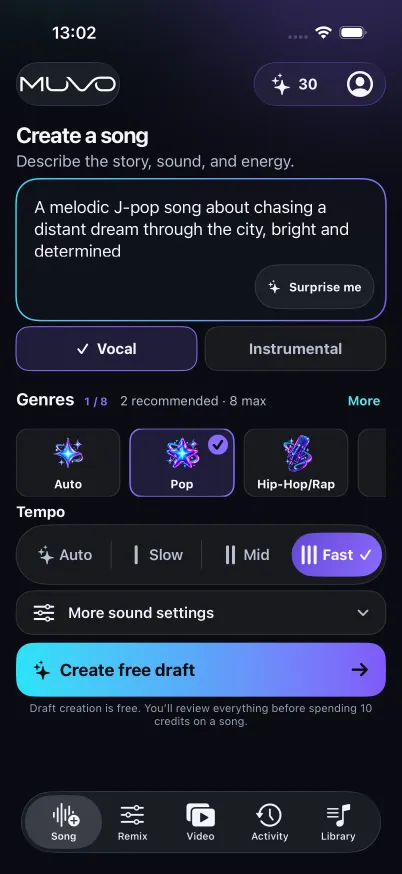
Open Create a song, choose Vocal, and describe the musical idea. You can mention the subject, but spend the description on the sound you want: a quiet acoustic verse, a bright pop chorus, or a restrained piano arrangement.
For example:
A warm acoustic-pop song about friends staying close after moving to different cities. Fingerpicked guitar, soft percussion, and conversational English vocals. Keep the verses intimate and let the chorus open up.
Choose compatible genre, mood, tempo, and vocal-language settings. Instrumental mode is for music without sung lyrics, so use Vocal for this exercise.
2. Create the draft and replace its lyrics
Create the free draft. In the draft review, replace or edit the proposed lyrics with your own permitted words. Check the title too: it should identify this version when you return to it later.
Read the full lyric field after editing. Look for a leftover generated verse, a duplicated chorus, or a missing line. The initial prompt and the editable lyric field serve different purposes; reviewing both helps avoid accidentally generating the wrong text.
3. Align the words and sound direction
Read the lyrics aloud while imagining the pace you chose. A long, detailed sentence may need more space than a short repeated hook. Shorten a crowded line or ask for a more spacious musical direction.
Save your changes before reviewing generation. Editing the draft prepares the next recording; changing text later does not rewrite audio that has already been created.
4. Confirm the audio-generation quote
Review the credit cost when the draft is ready. Free drafting and paid audio generation are separate steps. Confirm only after checking the lyrics and direction together.
When the song is ready in Library, listen with the saved lyrics nearby. Check the important names, the chorus, the transition between sections, and the ending. Decide whether the performance communicates your idea before starting another generation.
5. Export or refine the result
MUVO supports M4A and WAV audio exports through its Library workflow. Exporting requires an internet connection; downloaded finished songs can be played offline in the app.
If the words and composition work but the backing track feels too loud, explore AI remixing. If the lyrics themselves need changing, return to a written draft and review a new audio-generation quote. Mixing cannot replace a sung sentence with a different one.
A short original lyric exercise
Here is an illustrative four-line chorus to adapt with your own details:
Leave a light beside the door
I’ll bring stories from the train
Every mile between our towns
Gives us more to say again
The image is concrete: a light, a journey, and a reunion. For a quieter version, try a sound direction with soft guitar and restrained percussion. For a brighter version, describe piano, a steady beat, and a more open chorus. These are writing exercises, not audio examples produced or tested for this article.
Before generating, replace the setting with something that matters to you. A specific detail can do more for a personal song than adding several extra genre labels.
Troubleshooting your lyrics-to-song draft
The line feels rushed. Remove words that repeat the same idea, or split the thought across two lines. Review the tempo and direction as well.
The chorus is hard to remember. Choose one phrase to repeat and reduce the number of competing images. Check that the verses lead toward that phrase.
An instruction appears among the lyrics. Move production notes into the sound direction. Keep the lyric field focused on the intended vocal text.
A name sounds wrong in the recording. Listen carefully before sharing. Consider simpler phrasing in a future draft, but do not assume another paid attempt will fix pronunciation automatically.
Lyrics-to-song FAQs
Can I turn a poem into a song?
You can use a poem you have permission to process as the vocal draft’s lyrics. Read it aloud first and decide whether it needs shorter lines, a recurring refrain, or space between ideas. You may prefer to keep the poem intact, but the musical interpretation can vary.
Does text to song mean text to speech?
No. Text-to-speech tools produce spoken audio. A text-to-song workflow aims to create music, with sung vocals when you choose a vocal song. MUVO also supports instrumental songs prompted by a written description.
Is lyrics-to-song generation free?
MUVO’s download and editable song drafts are free. Generating the recording is separate and uses the applicable credits or offer shown before confirmation. Check the in-app quote; free drafting is not unlimited free music generation.
Can I use a famous song’s lyrics or monetize my result?
Only provide words you have the rights and permissions to process. MUVO-generated outputs are for personal, noncommercial use, even when you wrote the lyrics yourself. Read the output-use terms before sharing.
Published by MUVO. Prepared with AI assistance and checked against MUVO's documented workflows. Creative examples are suggestions, not tested presets or guaranteed results.