
LEARN WITH MUVO
AI Remix: How to Reshape a Song on iPhone
Learn an AI remix workflow in MUVO: separate permitted audio, rebalance stems, add an instrument part, compare with the original, and save a new version.
A remix needs a purpose. You might want the singer to stand out, a lighter backing track, or a new percussion part under the chorus. Decide on one change before touching the controls. That gives you a way to judge whether the new version is better for your idea.
This guide explains MUVO’s music remix app workflow on iPhone and iPad. It starts with an existing recording. To create a song from a written idea instead, use the AI song generation guide.
What does AI remix actually do?
“AI remix” can describe different jobs. Separation estimates the vocal and instrument parts already mixed together. Mixing changes their balance, pan, or mute state. Instrument generation creates an additional part that you can blend into the arrangement.
MUVO combines these steps, but they are separate decisions. Turning down a vocal does not write a new melody. Adding percussion does not guarantee a complete genre transformation. If the change you want is a new lyric or an entirely different composition, start with a new song draft rather than expecting mixer controls to supply it.
For a separation-only task, the vocal remover and stem splitter guide explains the available parts and their limitations.
Choose a source and a remix goal
Open a finished song in your MUVO Library, or import a WAV, M4A, or MP3 recording you have permission to upload and process. Imports can be up to 50 MiB and ten minutes. Complete the rights and processing confirmations before uploading.
Listen to the original all the way through. Write one sentence about your goal, such as “keep the vocal clear while making the chorus less crowded.” Note the passage where the problem is easiest to hear.
Three useful goals are:
- A more intimate version: bring the accompaniment down around a vocal without replacing the song.
- A rhythm study: listen to the bass and drums separately, then decide how prominently each should sit in the mix.
- A stronger chorus transition: add a restrained new instrument part over a selected range, then compare whether it supports the chorus.
These are creative exercises. Source quality and generated results vary, and separation cannot recover the original studio session.
How to remix a song in MUVO
1. Separate the source once
Use Review stem split, inspect the quote, and confirm when you are ready. Wait for the separated tracks before evaluating them.
The same separation supports Simple and Stems modes. You do not need another split to change views or adjust a level. If you have already separated the source in the session, begin with those tracks.
2. Make the smallest useful mix change
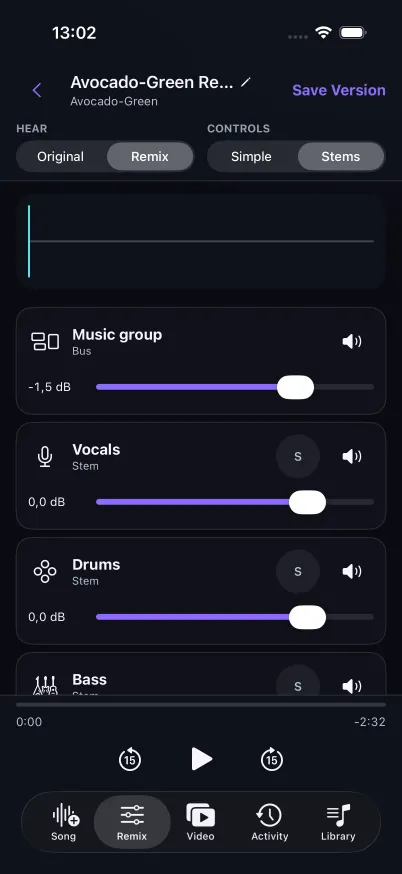
In Simple mode, use Vocals and Music for a broad balance adjustment. To make a vocal easier to hear, try lowering Music before raising everything else. Compare at a comfortable listening volume.
In Stems mode, work with vocals, drums, bass, guitar, piano, and other instruments. Solo a part to understand it, then listen again with the full mix. Adjust level or pan, and use mute when a part is not needed in the version you are making.
Check both a quiet verse and a busy chorus. A setting that sounds good in one passage may be too strong elsewhere. Do not mistake “louder” for “more useful to the song.”
3. Add an AI instrument only if the mix needs it
If balancing the existing parts achieves your goal, continue to saving. If something is missing, open Add AI instrument and select an available instrument. Choose Full Song or Selected Range, and decide whether the context should be Current Mix or Original.
Current Mix is useful when the new part should respond to the balance you have already made. Original uses the source recording as its context. Review the choice rather than assuming both will produce the same result.
Describe the musical role of the part. For example:
Restrained percussion that supports the chorus pulse, with space around the vocal and a light ending.
The example asks for one job instead of a second full arrangement. Select Review instrument and quote, check the range and cost, and confirm only when those details match your intention. This is a separate paid generation action.
4. Blend the new part and compare
When the generated part is available, listen to it in context and adjust its level. Try muting it again: does the song lose something useful, or does it become clearer? A technically interesting part is not automatically a good fit.
For a selected range, listen just before and after its boundaries. Check whether the entrance feels intentional and whether the ending distracts from the next phrase. The direction and range guide generation; they do not promise a perfectly seamless result.
5. Save a clearly named version
Use Original and Remix to compare the change, then choose Save Version. Give it a name that describes the idea, such as “Quiet backing” or “Chorus percussion.” MUVO saves a new Library version associated with the source, preserving the original.
Use the saved Library version for listening and available audio export. M4A and WAV exports are supported in the Library workflow. This guide describes exporting the mixed result, not downloading a folder of isolated stem files.
What if the remix sounds worse?
The accompaniment sounds watery after muting the vocal. Separation estimates overlapping sounds and can leave vocal effects or artifacts. Try a less drastic reduction and compare with the original. Another paid split is not a guaranteed repair.
The mix feels crowded. Mute the newly added part and listen again. If the original parts already fill the same role, lower one or keep the simpler version.
A soloed stem sounds strange. Judge it inside the full mix too. An imperfect isolated part may still work for a small balance adjustment.
The song needs a new chorus, not a new balance. Return to lyrics and song drafting. Remix controls shape existing audio; they are not a substitute for rewriting the composition.
AI remix FAQs
Which remix actions use credits?
Separation and generated instrument additions have reviewed credit quotes. Switching between Simple and Stems uses the same separation, and adjusting mixer levels does not submit another generation. Inspect the quote before each paid action.
Can I remix a streaming-service link?
The workflow covered here starts with a finished MUVO Library song or a permitted WAV, M4A, or MP3 file. It does not import a streaming-service URL. Access to a song through a subscription does not by itself establish permission to upload it.
Does saving overwrite my source song?
No. Save Version creates a new Library version associated with the source. Use a descriptive title so you can compare and find your versions later.
Can I release a remix commercially?
MUVO-generated outputs are for personal, noncommercial use. You also need the necessary permissions for source material. Credit purchases and Creator subscriptions do not add commercial-use rights; see the Terms of Use.
Published by MUVO. Prepared with AI assistance and checked against MUVO's documented workflows. Creative examples are suggestions, not tested presets or guaranteed results.