
LEARN WITH MUVO
Choosing an AI Music Generator App for iPhone
Choose an AI music app by workflow, lyric control, credits, exports, and usage rights. See how MUVO handles songs, remixes, and video on iPhone and iPad.
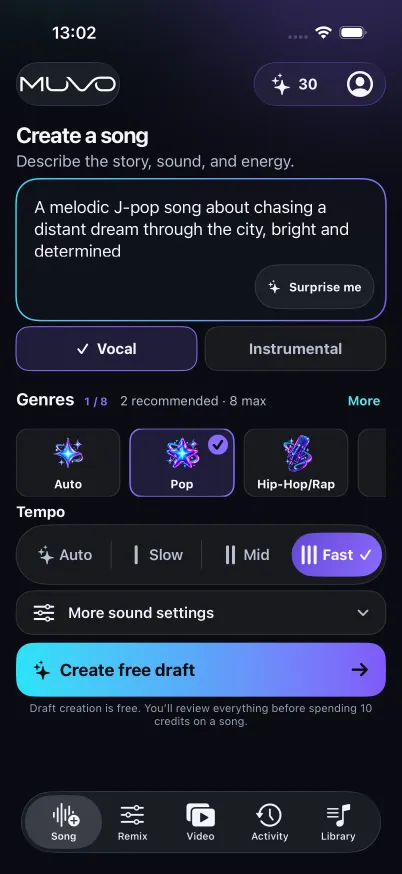
An app can produce impressive music and still be the wrong choice for your project. You might need to use your own lyrics, listen offline, export a file, or make a personal music video. Start with the result you need, then check the complete path from idea to export.
MUVO publishes this guide about choosing a workflow and using its iPhone and iPad app. It is not an independent ranking of apps. For differences between named services, see the AI music generation tools comparison.
First decide what you want the app to do
People use “AI music app,” “AI music generator app,” and “AI song generator app” for overlapping products. The label alone does not tell you which of these tasks an app supports:
- Create a vocal song from an idea. Look for editable lyrics and a way to specify the sound before generating a recording.
- Make an instrumental. Check that the app offers a music-only workflow rather than requiring you to remove vocals afterward.
- Work on an existing recording. Look for stem separation and mixer controls, plus supported import formats.
- Create a music video. Check eligible song sources, portrait requirements, video formats, and the stages that cost credits.
MUVO brings these workflows into one app, but they start from different inputs. The song guide, remix guide, and video guide explain each path.
Six things to check before choosing an iPhone music app
1. Device compatibility and connection requirements
Check the current App Store listing against your device before downloading. MUVO’s App Store listing specifies iOS 18 or later for iPhone and iPadOS 18 or later for iPad. Its app interface is in English; vocal-language choices are separate creation settings.
MUVO’s AI creation requires an internet connection. You can download finished songs in the app for offline listening, but drafting, generating, and exporting require connectivity. Persistent offline video downloads are not part of the documented workflow.
2. What you can review before generating
A prompt box is only the beginning. Check whether you can inspect and change the title, lyrics, and musical direction before committing to audio generation.
MUVO creates a free editable draft first. For a vocal song, you can replace the proposed words with your own permitted lyrics. For an instrumental, the draft focuses on the sound. The draft is written material, not an audio preview. See lyrics to song for the difference between a description and words intended to be sung.
3. Where payment happens
Distinguish a free download, a free draft, and a generated recording. They are different stages. In MUVO, paid creation shows a credit quote before confirmation. Credit packs and an optional Creator subscription are available; Creator does not mean unlimited generation.
Follow the costs through the whole project. A song may lead to separation, an added instrument, or a video. Those actions can have separate quotes. A Custom music video can also have separately charged planning, storyboard, rendering, and regeneration stages.
Use the current prices and allowances shown in the app. A recurring subscription price alone does not tell you the cost of the workflow you intend to complete.
4. Imports, exports, and the file you actually need
If you want to remix an existing recording in MUVO, it must be a finished Library song or a permitted WAV, M4A, or MP3 file. Imports can be up to 50 MiB and ten minutes. Complete the rights and processing checks before uploading.
MUVO supports M4A and WAV audio exports through Library and finished vertical-video exports through its video workflow. Working with separated tracks inside the app is different from exporting every stem as its own file. Confirm the specific export you need before building a project around it.
5. Permission to use the result
Match the app’s terms to your intended use before generating. A paid plan does not automatically grant permission for advertising, commercial releases, or client work.
MUVO-generated outputs are for personal, noncommercial use. Its output-use terms apply even when you buy credits or subscribe to Creator. If you need commercial use, compare other tools and their current terms before committing to a workflow.
6. Account access and personal media
MUVO can start with a guest account, with optional Apple linking in Account to help recover access. Guest access alone does not guarantee recovery if you lose the device or app data. Consider recovery before relying on an app as the only place to keep your work.
For MUVO’s portrait-led video workflows, use your own self-portrait as an adult and complete the image-rights and consent checks. Read the privacy policy before providing personal media. MUVO’s service eligibility is 18+ and local legal majority; storefront age ratings are not a substitute for the service’s terms.
A practical first session in MUVO
Start with one small idea so you can evaluate the app’s draft workflow without confusing several tasks:
- Choose a vocal song or instrumental and describe one scene, story, or mood.
- Create a free draft. Check whether the title and direction express your idea; for a vocal song, read and edit the lyrics.
- Save the draft and inspect the generation quote. Continue only when you want to spend the applicable credits.
- If you generate audio, listen to the complete result before deciding whether it needs a remix or a video.
- Check the export options and permitted use before sharing it.
For example, “a mellow instrumental for a rainy afternoon, with soft piano and light percussion” gives you a specific result to evaluate. It is a suggested exercise, not a demonstrated output or a quality guarantee.
When is MUVO a useful fit?
MUVO is a fit for an adult who wants to explore personal song ideas, rebalance permitted recordings, and make portrait-led videos on iPhone or iPad. The editable draft is useful when you want to shape the words before generating a song.
It will not suit every project. Choose another workflow if your essential requirement is commercial output rights, a browser-based music editor, offline generation, or an export format the app does not offer. You can explore the written draft for free before deciding whether the creation workflow meets your needs.
AI music app FAQs
Can I generate AI music directly on my iPhone?
You can start and manage creation in the MUVO iPhone app. AI creation requires an internet connection; this is not an offline, on-device generation workflow. Check your device against the current App Store requirements.
Do I need a separate AI song maker and remix app?
MUVO includes song creation and remixing, so an eligible finished song can continue into a remix workflow within the app. Each paid action still has its own review and quote.
Is MUVO available as a website music generator?
The MUVO website explains the product, publishes guides, and links to the App Store. The creation workflows described here take place in the iPhone and iPad app, not in a website editor.
Can I use an AI music app without musical training?
MUVO starts with ordinary-language descriptions and editable drafts. You still make the creative decisions: what the song says, how it should feel, and whether the finished recording works for your purpose.
Published by MUVO. Prepared with AI assistance and checked against MUVO's documented workflows. Creative examples are suggestions, not tested presets or guaranteed results.