
LEARN WITH MUVO
How to Make an AI Song: A Step-by-Step Guide
Learn how to make an AI song in MUVO: write a prompt, edit the lyrics, generate vocals or an instrumental, then listen, remix, and export on iPhone or iPad.
You do not need a finished melody to start an AI song. A personal story, a scene, or a feeling can give the music direction. The useful work is deciding what the song should say, then refining the idea before you generate the recording.
This guide walks through MUVO’s song creation workflow on iPhone and iPad. MUVO publishes this guide; the examples below are starting prompts, not promises of a particular musical result.
What you need before making an AI song
Start with MUVO, an internet connection, and a short description of your idea. No audio upload is required for this workflow. If you bring your own lyrics, use words you have the rights and permissions to process.
Decide whether you want a vocal song, with sung lyrics, or an instrumental, where the instruments carry the idea. A birthday message might call for a vocal song. A piece to listen to while sketching might work better as an instrumental.
You can explore the written draft for free. Before audio generation, check the cost and any offer actually shown in your app. A draft is a plan for a song, not an audio preview.
How to make an AI song in six steps
1. Describe one clear idea
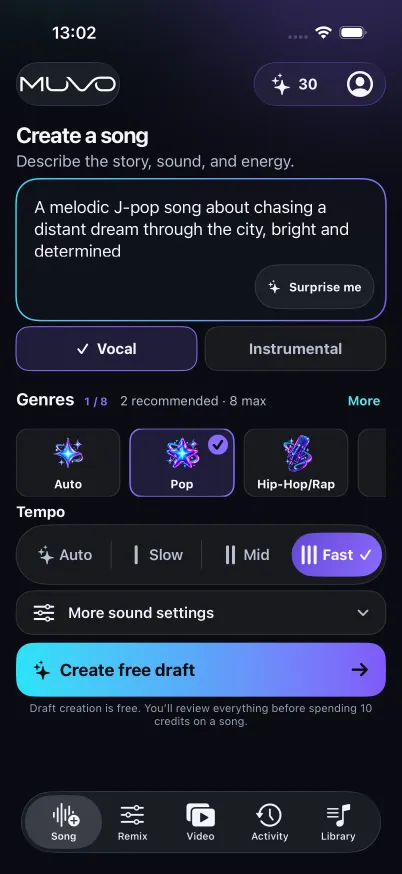
Open Create a song and describe the story, sound, and energy. Give the song a subject instead of asking for something generically “amazing.” A few concrete details give you something useful to evaluate when the draft comes back.
Try this prompt structure:
A [genre] song about [specific subject]. The mood is [feeling], with [instruments] and a [tempo or energy]. The chorus should focus on [main message]. Use [language] vocals.
For example:
A warm indie-pop song about moving to a new city and finding a familiar café. Gentle guitar, a steady mid-tempo beat, and an optimistic chorus about making a place feel like home. English vocals, with intimate verses and a brighter final chorus.
Use musical descriptions to communicate your direction: instruments, rhythm, mood, and arrangement. The example gives the song a setting, an emotional change, and a recognizable sound without requiring technical music vocabulary.
2. Choose vocals, genre, mood, and tempo
Choose Vocal or Instrumental, then explore the genre and sound settings. For a vocal song, you can choose a language and vocal preference. The app interface is in English; the vocal-language choice is a separate setting.
Keep the controls consistent with the prompt. If you want a gentle acoustic song, a high-energy dance direction may work against that intention. Begin with a small number of compatible choices; you can make the direction more adventurous once you have a clear starting point.
3. Create the free draft
Tap Create free draft. Review the proposed title, lyrics for vocal songs, and sound direction. Instrumental drafts focus on the music without sung lyrics.
Read a vocal draft out loud. Does the chorus express the main idea? Are the verses telling a story, or repeating the same thought? Are names, places, and personal details correct? This is the moment to turn a plausible draft into something that feels specific to you.
4. Edit and save the draft
Replace vague lines with concrete images. “I miss the old days” might become a line about a train platform, a kitchen radio, or a shared walk home. Keep only the details that belong to the song you are making.
Review the sound direction too. If the lyrics are reflective but the production description calls for a frantic club track, decide whether that contrast is intentional. Save your edits before continuing.
Editing the draft changes the instructions for the upcoming generation. It does not edit a recording that has already been generated.
5. Review the quote and generate the audio
Check the credit quote and confirm when the draft is ready. Audio generation is a separate action from drafting. Your finished song arrives in Library, where you can listen to the result.
AI output can interpret your instructions in unexpected ways. Listen to the opening, the vocal delivery, the chorus, and the ending. The first question is whether the recording captures your idea, rather than whether it follows every word of the prompt literally.
6. Listen, export, or develop another version
MUVO supports M4A and WAV audio export. Finished songs can also be downloaded in the app for offline listening; drafting, generation, and export require a connection.
If you like the song but want a different balance between vocals and instruments, try the stem separation and remix guide. If you want to give an eligible song a visual story, follow the AI music video guide.
Three AI song prompt examples to adapt
A personal celebration:
An upbeat pop song for a friend’s thirtieth birthday. Bright piano, a relaxed dance beat, and a playful chorus about our weekend road trips. English vocals. Warm and affectionate, with a simple hook.
A quiet instrumental:
A mellow instrumental for a rainy afternoon. Soft electric piano, rounded bass, light percussion, and a slow, steady groove. Keep the arrangement spacious and the mood thoughtful.
A reflective story:
An acoustic folk song about returning to a childhood town and noticing what has changed. Fingerpicked guitar, restrained percussion, and conversational English vocals. Let the final chorus feel hopeful.
Change the subject and one or two musical choices to fit your idea. These are creative exercises, not tested presets or guaranteed outputs.
Common mistakes and what to try instead
- The prompt asks for too many conflicting things. Choose one emotional direction and a few supporting sounds. Save other ideas for another draft.
- The lyrics could describe anyone. Add a real setting, action, or memory, then remove details that distract from the central message.
- The draft is mistaken for a finished song. Review and save the draft first; audio generation has its own confirmation.
- A mix problem becomes a whole new generation. If the composition works and you only want to rebalance the existing recording, explore Remix before starting over. Separation has its own quote.
AI song creation FAQs
Can I make an AI song without knowing music theory?
Yes. In MUVO, you can start with ordinary language and choose genres, moods, and tempo settings. You still make creative decisions by reviewing the draft and listening to the result.
Is making an AI song free?
MUVO is free to download, and editable song drafts are free. Audio generation is a separate action. Review the quote and any eligibility-based offer shown in the app; free drafting does not mean unlimited free recordings.
Can I write my own lyrics?
You can edit the vocal draft’s lyrics before generating the audio, including replacing them with your own permitted lyrics. Save the changes so the draft reflects the words you want to use.
Can I sell or monetize the song?
MUVO-generated outputs are for personal, noncommercial use. Buying credits or a Creator subscription does not add rights to sell outputs, monetize them, or use them in advertising or client work. See MUVO’s output-use terms.
Which AI music tool should I use?
MUVO is a fit when you want song creation, remixing, and personal music videos in one iPhone or iPad app. If your priorities include MIDI composition or commercial licensing, compare the workflows and terms in our AI music generation tools guide.